

The NEPTUN and Xeropan collaboration has resulted in the creation of the NEPTUN foreign language training module. This module is available to all Hungarian higher education students and instructors who have a NEPTUN account, and whose institution has requested the addition of this module to the NEPTUN system.
1. Instructor access for learning purposes
Instructors working in higher education can use the specialized language module to improve their own language skills, just like students, through the following courses:
5 general language modules: English, German, Spanish, French, and Hungarian (from beginner to advanced levels).
10 specialized language modules: including Business, Law, IT, Medical, and Academic English.
The courses focus on developing all language skills and provide an opportunity to acquire practical language knowledge.
Starting language learning via instructor:
Log in to the NEPTUN instructor interface!
Click on ‘Menu’ → ‘Studies’ → ‘Electronic Study Materials’!
Then click on ‘Language learning app’, which will redirect you to the Xeropan platform!
This step will change depending on the device you're currently using:
Using a browser: Click the ‘Click here’ button!
Using a mobile device: After NEPTUN redirects you to Google Play Store or the App Store, download the Xeropan app and open it!
Started in the browser, but switching to mobile via QR code: Scan the QR code with your mobile camera (Please do not use a separate app for scanning!) and download the Xeropan app from the Google Play Store or the App Store!
If you have already advanced before scanning the QR code: Simply complete the onboarding tasks, and then click the ‘Download the app!’ button at the bottom right corner of the main screen (or you can find it in the gear menu at the bottom left corner) to scan the QR code.
Important: Each student has a unique QR code. We recommend not sharing it with others, as it directs them to your personal profile, and unauthorized persons may gain access to your personal data and study-related information.
Select your target language → source language → and which module you would like to study, then click the ‘Next’ button!
Go through the introductory lessons!
Happy learning!
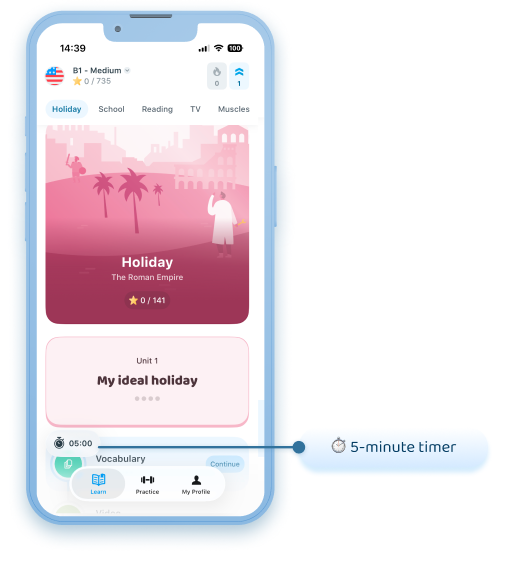
Note: Please be aware that 🚩if you encounter a 5-minute daily limit (see the 5-minute timer icon in the image), you are definitely not logged into the correct profile. In this case, please follow the steps described above to try logging into the correct account, or email us at neptun@xeropan.com and we’ll help you!
Bug reporting: If you encounter any issues, please contact our customer service at neptun@xeropan.com. Also, kindly describe the issue you’re experiencing and the institution where you are teaching. If possible, please attach a screenshot of the issue. Thank you!
2. Access to the Learning Management System for educational purposes
The learning management system provides instructors with the following options:
The Learning Management System (Classroom) primarily offers an efficient solution for instructors who wish to complement their in-person language or professional courses with digital materials, targeted task assignments, and tracking student progress.
The system is well-suited for both general and specialized language training – such as language lektorates – as well as courses taught in foreign languages (English, German, Spanish, or French), where international and/or non-native speakers participate.
Instructors teaching professional courses in English can use the available English language courses as supplementary materials to practice the relevant terminology and professional communication, strengthening students’ specific English language skills.
The Classroom also supports teaching Hungarian as a foreign language, facilitating the language development and sociocultural integration of international students.
The learning management system offers features such as creating student groups, assigning and grading tasks, and tracking student progress.
Requesting access to the Learning Management System
To request access to the system, please contact us via our central email address, neptun@xeropan.com, and provide the following information:
Your name,
The name of the higher education institution where you teach,
Please specify that you would like to request access to the Classroom Learning Management System.
We will then get in touch with you and send you the access details for the Learning Management System, along with a guide on how to use it!
If you have any further questions, please feel free to email us at neptun@xeropan.com