

The NEPTUN foreign language module, was created through the collaboration between NEPTUN and Xeropan. Students can learn a variety of languages such as general English, German, Spanish, French, Hungarian, as well as specialized languages such as business law, medical, IT and many more.
The module is available to all students in Hungarian higher education who have a NEPTUN account and whose institution has requested the expansion of the NEPTUN system with this module.
The module can be accessed in three ways: through a browser, from a mobile device, or started in a browser but continued on mobile using a QR code, which directs you to the mobile app.
No matter which platform you begin your language learning on, you can switch between devices at any time, so you can continue your studies seamlessly on your chosen device where you left off. 💻 ⇆📱
Access steps:
Log in to the NEPTUN student interface.
Click on ‘Menu’ → ‘Studies’ → ‘Electronic Study Materials’→ ‘Language learning app’.
This step will change depending on the device you're currently using:
💻Using a browser: Click the ‘Click here’ button.
📱Using a mobile device: After NEPTUN redirects you to Google Play Store or the App Store, download the Xeropan app and open it.
💻 → 📱Started in the browser, but switching to mobile via QR code: Scan the QR code with your mobile camera (Please do not use a separate app for scanning.) and download the Xeropan app from the Google Play Store or the App Store.
Important: Each student has a unique QR code. We recommend not sharing it with others, as it directs them to your personal profile, and unauthorized persons may gain access to your personal data and study-related information.
Select your target language → source language → and which module you would like to study, then go through the introductory lessons.
Happy learning!
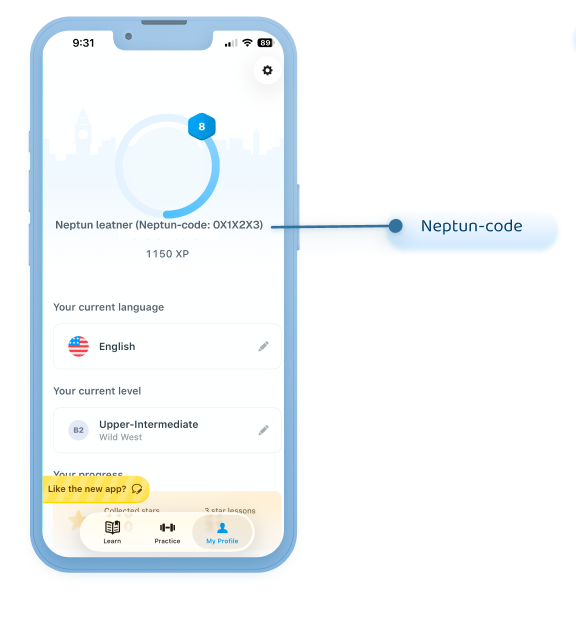
⚠️ Check your profile after logging in: In the “My Profile” menu, you can use your Neptun code to verify that you have logged into the correct profile. If you do not see your Neptun code, please contact us at neptun@xeropan.com and we will help you resolve the issue.
If you have any questions, feel free to contact Xeropan support at neptun@xeropan.com.