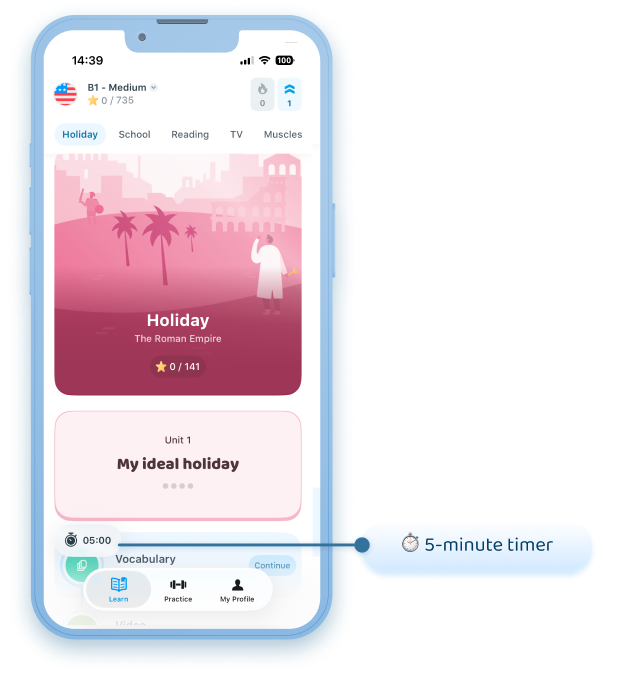

If your school or organization partners with Xeropan and has provided you with access to the platform, follow the steps below to log in:
1. Copy and paste the following link into your browser: https://deeplink.xeropan.com/organization_login
📱If you are using a mobile device and have not yet downloaded the app, the link above will first direct you to the App Store or Google Play store, where you can download Xeropan.
💻 If you are using a laptop/desktop computer, the link will redirect you to the web interface.
Accept the Terms of Use and click the ‘Next’ button!
Log in to your organizational account with the username + password you received from your school or organization.
Choose which language you would like to learn, you can change it at any time later.
Choose the language you want to learn from (your source language)!
Set your language level or fill out the placement test (you can change it at any time later)!
Happy learning!
⚠️ Important! If you log in successfully, you can study with Xeropan for an unlimited time, so the 5-minute time limit shown in the image will not appear.
If you experience this, please let us know at institutions@xeropan.com! Be sure to include:
your name,
the name of your school or organization,
and we'll be happy to help you access to your profile.